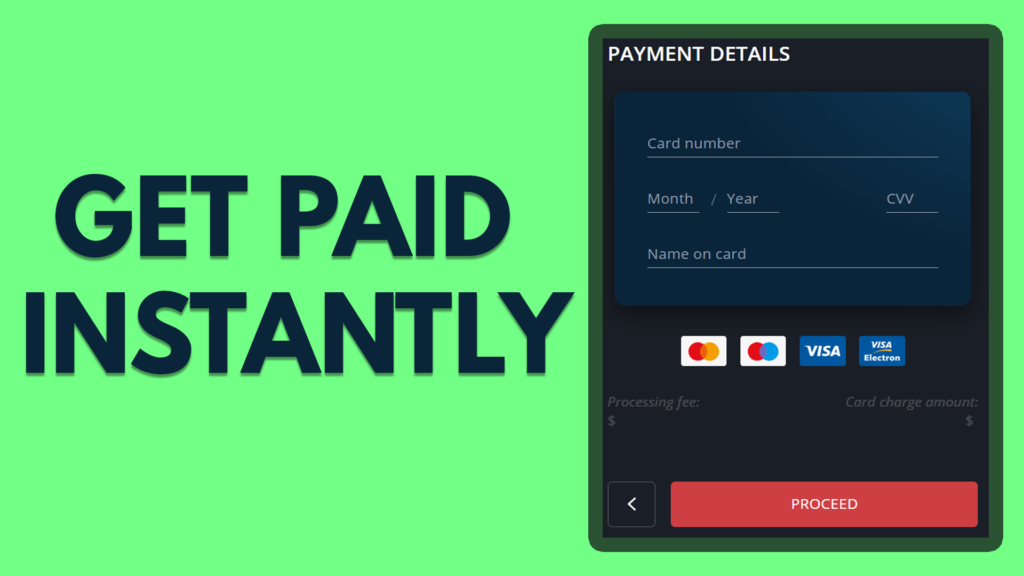
If you are from a small country like me that doesn’t support PayPal or Stripe, Getting paid online will be a pain in ass. I have researched the internet a lot to accept payments by credit card with a link from clients world wide. There are lot offering this service but somehow I do not meet minimum requirement (country or traffic). So Today I am going to share you a method on how to accept payment by credit card with a link from anyone with a payment card. The only requirement is for you to have a valid passport, you do not need a website or traffic to get approval. For this service we will use a virtual bank called DukasCopy which has a lot of cool features.
To accept payment by credit card go to your account and click request. This will prompt you to enter the amount you like to receive. Once you enter send request, it will give you a link to accept payment by credit card. Share this link and get paid online from anyone with a credit or debit card.
Please note that this request option will be visible only on mobile app. Also check other post from my My Blog
Download DukasCopy Connect App.
How to accept payment by credit card with a link
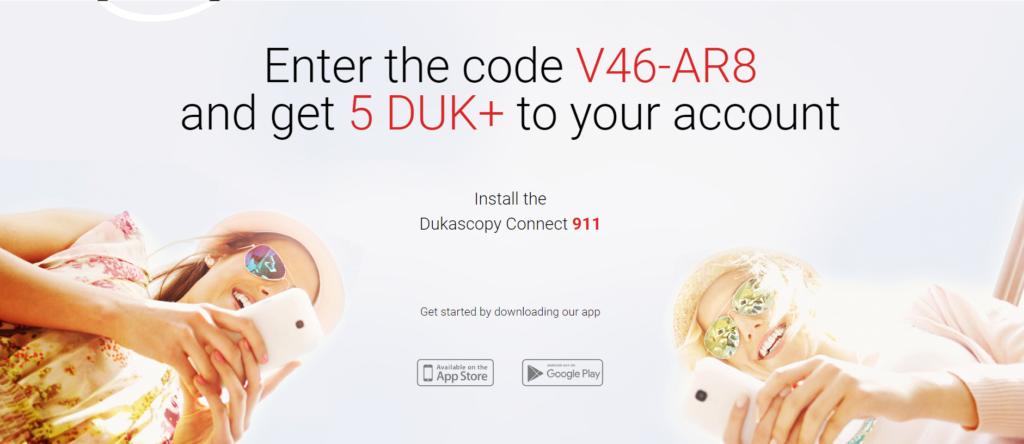
The first thing you need to do is go to playstore or appstore and download DukasCopy 911 app. Also you can download mobile bank also, But to open you need to use Dukascopy Connect 911 App. The mobile bank app can be used once you complete the registration. On the registration use the code V46-AR8 to get 5 DukasCoin (Can be converted to dollar).
How to open your virtual bank account
How to open a dukascopy account
Now you have successfully installed the 911 app, Open the app and fill the required form. The form will contain basic question, ensure that you write your name and details, as exactly in your passport, because like any other bank, dukascopy bank is going to verify that information.
The last step is the video verification. Don’t panic, its just a two minute call where they take a live picture of you with your passport to verify that you are a real person. Its completely normal for any banking system. They wont be asking much of a question, but they may ask your name to verify that you are not a bot.
What are the features of Dukascopy bank
Now that you have completed all steps, within an hour you will receive an email with confirmation. Now you can login to your dukas account using web or mobile app. The dukascopy will work just like any other bank. You can create visa or master card to spend on online store or even deposit or withdraw from popular services like skrill or neteller.
The best features of dukascopy bank include:
Supports 20+ Currencies
Exchange currencies
Get paid from anyone with a payment card
Deposit or withdraw using Payment card, Bank Transfer, Skrill & Neteller
Virtual Master and Visa Card
Online bank statements
etc…
How to accept payment by credit card with a link
Live Proof
Accepting payment by credit card is very easy in DukasCopy bank. You can request money from anyone by sending a link, But this option can be seeing in the mobile app only at the time of writing this post. You can always visit the web and check if that option is there or not, But for me I couldnt find it.
On your mobile open swiss bank app, In the Accounts tab you should see a button with text of “request”. Click this button enter the amount you want and click send request to generate a unique URL you can send to your customers to start accepting payment by credit card with a link. Please note that this link will expire in 7 days.
Create your virtual Master or Visa Card to spend it
Now that you have learnt how to accept payment by credit card with a link, lets focus on how you can withdraw or spent it. The app has bank transfer option, so you can always transfer this funds to your local bank using swift transfer. But the DukasCopy have a great feature, that lets you create master or visa cards.
On the cards tab select plus button to create your payment card. You can get a virtual card or even a physical card which will be delivered to your address. Furthermore, you can also select whether you want a visa card or master card. Please note that for each card you create, you need to pay about 20 USD as a one time fee.
The Dukascopy bank have integrated the skrill and neteller to their banking system. This mean you can easily deposit or withdraw to your skrill and neteller account in seconds.
A quick important note
As you have just started your dukas account, you will be having a limitation in withdraw or deposit amount. So if you ever run into any limitation send a text to bank using the 911 app we downloaded earlier, so they will increase your limitation.
The main difference between our facebook group poster pro and GP Group Poster is that we have a software that run on windows, and GP Group Poster is a website.
Which is better, our software or GP Group Poster
Well, this is a debatable question, as different people prefer different methods. Our software is a simple tool we built, while GP Group Poster is a little bit advanced tools. Lets see the main difference in these both facebook group poster
Facebook Group Poster PRO (By us)
GP Group Poster
=> Can Upload Image
=> They are already working on the upload image feature
=> Provides support using email & Facebook messenger
=> Provides support using WhatsApp or Facebook Messenger
Difference between our facebook group poster & GP Group Poster
Now I think this is enough about difference’s of both tools, So lets focus on GP Group Poster. If you want to know about our facebook group poster as I mentioned go to How to post to multiple groups on facebook | AUTOMATED
What’s GP Group Poster & How it works
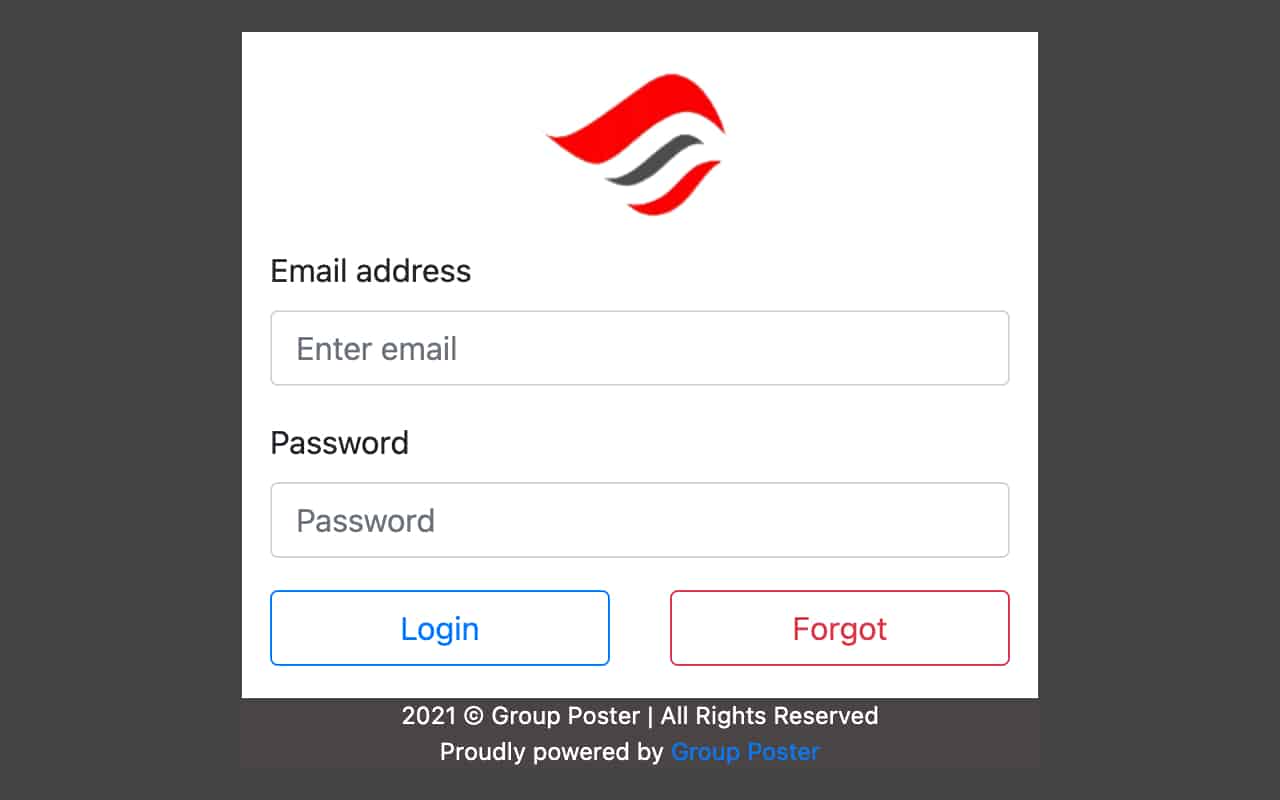
GP Group poster is a chrome browser extension for anyone to post their content automatically to any facebook and linkedIn group. Once you have purchased GP Group Poster, you will receive the access details and instruction to use the tool. Basically all you need to do is go to google web store, click on the add to chrome button and log in to the extension using the access details you recieved, when you completed your purchase, and then start posting.
Do I need to be an admin of the group
Well, In the facebook and linkdlin you do not need to be an admin to post content. If you navigate to the group from the normal your browser and if you are having the permission to post to that group, Then there is nothing that stops you from posting using GP group Poster.
Do they offer a free trial or refund?
The short answer is no, The GP Group Poster is a professional website, but as for everyone they have down time, espicially with tools like this. So before purchasing I recommend that you contact their support and check if everything is OK or not.
Their live support will be available using facebook messenger and WhatsApp.
According to them they do not offer free trial or refund because:
1. Due to the importance of LinkedIn & Facebook Groups posting they allow serious businesses only to use their tool.
2. GP Group Poster offer enables you to apply powerful marketing techniques for business.
3. To protect the Networks from spam and abuse, they are not providing longer Free trials and refunds anymore.
As a creator of similar tools like this, I undertsand this. For a service like this its difficult to offer free trials as expenses of hosting are high.
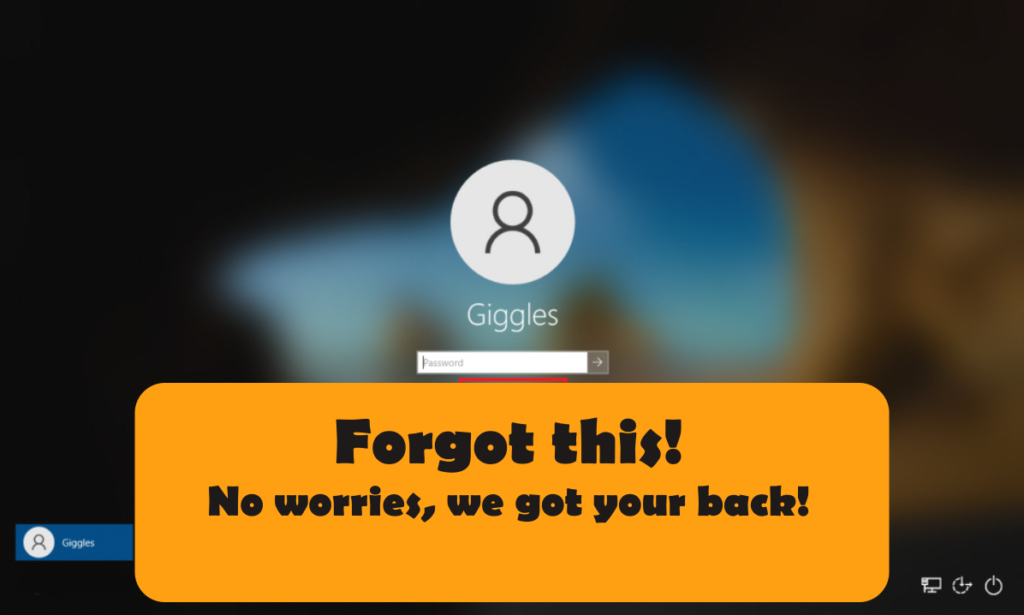
There are a lot of methods on how to reset the windows password in the internet. Some of them will be simple as asking asking you to select “forgot password” under sign in screen (which you obviously would have tried) or asking you to edit windows folder in C drive which might be fairly complicated for you OR NOT.
Today I will share the easiest method which is to boot your PC from a usb which we will recommend below and either copy your files or even let the usb reset windows login password for you. We will be mentioning 2 usb drives (free and paid), but we always recommend you to go for the paid one, as it was developed by professional companies. And most importantly its available on amazon itself.
Reset windows password using EZALINK USB (Reccomended)
Windows Password Reset
Let me simply what you need to do reset windows password to 3 step for you.
Insert the USB and shut down your computer.
Change your settings to boot from the USB. (instructions included)
Presto! The software will reset your password with just a few clicks.
As much as this sounds interesting, I know you will have some Question. I will try my best to answer some here, and if you have any question, comment it below.
“What’s An Ezalink?”
Ezalink products combine quality software with over 20 years of combined technical experience.
Every product can be used without the subscriptions that cost you hundreds over time.
Each USB includes printed instructions and extra guidance is available so you’re never left in the dark.
Frequently Asked Questions
Can I use this on multiple devices? Yes
Can this reset a BIOS or Bitlocker Password?
No, only Windows user passwords can be reset, this includes the admin user.
Does this work with the Password Reset Wizard?
No, it works by booting a small program from usb itself. The steps are similar and the instruction has been extended as well.
Does this work if the hard drive is encrypted? Yes, It will work
Features of Password Reset USB
Now if you want this usb click this link or select product below to make the purchase. If you do not want this, keep reading I have another method, that could copy your files.
Reset windows password with help of Hiren’s Boot CD
Hiren’s boot cd works similar to above USB. Instead of trying to reset the password, hiren boot cd will open your device with the operating in the boot cd. Even though I am referring to CD hiren boot cs can be installed to any usb. You can get hiren boot cd from amazon or even download it from their website.
Insert the bootable cd or usb with hiren boot CD installed, and change your boot device to this device. After that once, logged in you can access all hard drives in your PC like in windows and copy the necessary files. After that you are free to format your PC to reset the password. This way at least you wont loose your data.
Reset windows password with CMD
If you are not a tech person, of course with might sound like its difficult, But just follow this article to get it done.
1) Go to troubleshoot blue screen
Navigating to troubleshoot screen can be little different on different PC, So let me break down most common ways
On the password entering screen, Click & Hold “Shift” and select restart
Press power button when manufacture logo appears for 3 times
I know that pressing power button on boot, sounds foolish, but when you crash booting for 3 times, It will automatically navigate to Troubleshoot screen.
Troubleshoot menu
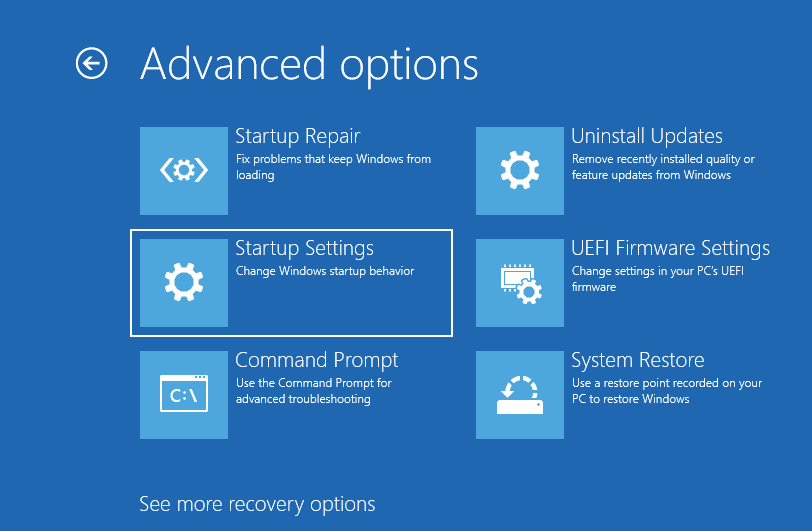
Once you go to Troubleshoot screen, you need to navigate to “Advanced Option”
2) Select Startup Settings
Once you see all the options, on advanced options, Choose the startup settings
Select startup Settings
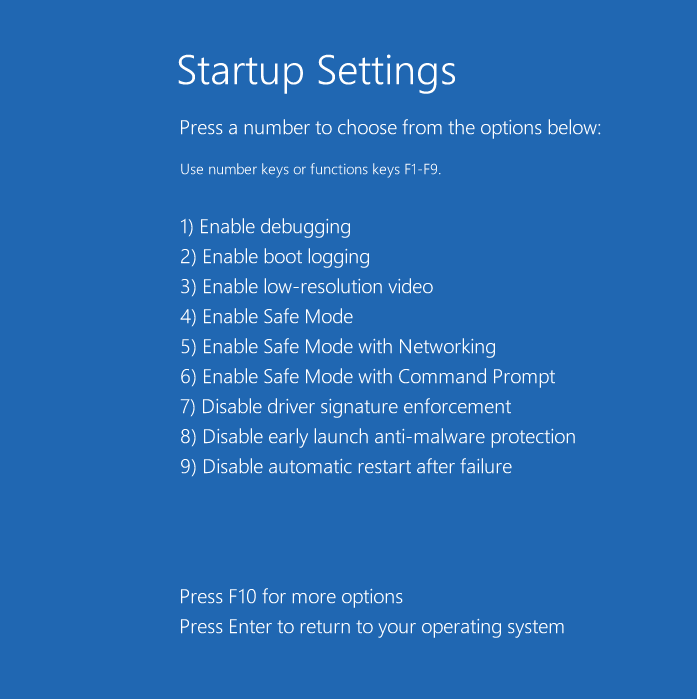
3) Enable the safe mode
Under the startup setting you can see many option, from there select 4th option, which is to enable safe mode.
Enable Safe mord
4) Get available users using CMD
Once you are reboot your PC, you will get a window, opened with cmd or command prompt. CMD is a basic input output typing windows, which is usually black and white. On the CMD type the following command to see available users in your PC.
net user
Net User Command executed on CMD
5) Reset password using CMD netsh command
From the previous account you can get the name of the DefaultAccount, In my case which is “Administrator”. Once you get execute the following command to change the passowrd.
net user Administrator YourP@ssw0rd
Reset windows password using CMD
Once above steps are completed you can restart your machine and login using the password you set above.
The PDF is something that we need to deal on a regular basis. However these when it comes to converting a PDF to Image on android I have seen people struggling. This is why I decided to break down the process into a simpler way. The first thing is that some mobile photo implemented this feature on production and others did not. There are 2 common ways:
With any pdf reader (without installing an app)
Using toolkit application (installing a app)
PDF to IMAGE without installing an app
This might sound surprising, But there is a way to convert the PDF files into image file without having to install any application. Yes as I have mentioned above some mobile phone manufactures implement a feature to convert pdf to image on android. This option can mainly found when you open a PDF file using system default PDF reader. If you cant find this option, don’t worry there is a work around.
Even though your mobile not have this option, you can easy open the pdf file and zoom to that area of the presentation you would like to make a image, and screenshot this area. Mostly you can take screenshot by pressing volume up button and power key. I know that in some documents, the quality wont be great, This is why we have a second method down below using our mobile app toolkit.
PDF to IMAGE using our toolkit box
The toolkit box is an application designed by us for everyone with simple android tools, that you need daily.
These tools will help you to perform a lot of tasks by using your mobile phone. All of the tools are native, means that this is not a web application, and operations are performed natively and its super fast. Convert between different file types and even recognize the text from printed material in offline mode with the tools in this application. The most important feature in this app is that you can save the files generated by these tools to your device easily.
These tools include => Image to PDF Convertor => PDF to Image Convertor => Speed Test => Text to Speak => Stopwatch => Device Info => Unit Convertor => Time Convertor => Day Calculator => Text Recognition => QR Code Generator => Flashlight => Crop Image => QR Code Scanner
All of these tools are full offline, Means that you do not need internet connection to use these tools.
The first thing is for you to head over to playstore and download this application. After downloading open the tool and select PDF to IMAGE option.
Convert PDF to Image on Android
As you can see in the above screen, all you need to do is select the PDF file that you wanted convert to image and it will be saved to my files folder on the application in image format. It is simple as that.
The video guide on how to convert pdf file to image
First of all its not hacking. We are going to look into how to find wifi password of the networks that you have previously connected on any machine that run windows. I have tested this on windows 10 and is expected to work on any version of windows. Before you want I am going to break it down to 3 categories or methods to see the password of every wifi network you ever connected.
Find wifi password using wireless properties.
Find wifi password using our program.
Find wifi password using cmd
Find wifi password using wireless properties
Image from PCMAG
If you a windows machine you can get into this very easily, without any coding or writing anything on terminal. You just need to follow the steps mentioned below and you are done.
On a Windows PC that’s connected to your Wi-Fi network, do one of the following, depending on which version of Windows is running on your PC:
On Windows 11, select the Start button, type control panel, then select Control Panel > Network and Internet > Network and Sharing Center.
On Windows 10, select the Start button, then select Settings > Network & Internet > Status > Network and Sharing Center.
On Windows 8.1 or 7, search for Network and, then select Network and Sharing Center from the list of results. To learn how to find out which version of Windows you have, see Which Windows operating system am I running?
In Network and Sharing Center, next to Connections, select your Wi-Fi network name.
In Wi-Fi Status, select Wireless Properties.
In Wireless Network Properties, select the Security tab, then select the Show characters check box. Your Wi-Fi network password is displayed in the Network security key box.
It might sound like you have to do a lot of thing, But all you need to do is run our program, and it will give you a text file with all your wifi passwords. This is very helpful if you want to get it done very soon.