Whats windows server? What you are seeing above is a picture of many servers. It might be running any kind of server. But today we are going to cover basic of windows server which is mainly used by small business and organazations.
Windows server is a operating system released by Microsoft. The windows server is mainly used by offices to manage their employees. The latest version for windows server at the moment is windows server 2019. It includes a lot of features and helps you manage the users pc’s.
Windows server is actually useful because of its user friendly interface. Most probably any administrator who can manage windows 10 also can manage windows server. In windows server you can create something called active directory users and join those users to the domain you use. The important part of this is that after joining the windows server you can manage that particular PC with the server manager. You can impose any group policy to the group of users want. This includes restricting their some permission and setting a default background for the users.
Whats DHCP in windows server?
DHCP stand for Dynamic Host Configuration Protocol. That this does is that whenever you connect a pc to the domain it will give the ip address based on the policies that you created. So we don’t need to configure each and every pc. You can give a specific ip based on the users mac-address. When you can the clients ip address you can perform lot more operation like limiting bandwidth and all.
What are the features of windows server?
Let me list our the features of windows server and explain them later in this post
Windows Admin Center
Enhanced Security
Containers
Wlan
Active Directory
System Insights
I could list out endless features of windows server, but let me tell you what it do briefly. When you try to login to your windows PC at office, unlike home it will ask both for username and password. This is managed by windows server. And when you try to connect to office Wi-Fi, you are asked to enter identity and password. So everyone enter their own identity and password. When you try to access files on office server, some are restricted and other are not restricted. All these are most likely implemented by windows server.
What information can IT admin see, Will they see what I have wrote for my password?
Just like any authentication provider, Windows server also keep its users password encrypted. This mean your IT admin also cannot see what you have entered as password, but they will be able to change your password or disable your password at any time.
When you browse wifi using the credentials of windows server, IT admin will be able to track the network usage. They even might log the websites you are visiting. But they also wont be able to see what your texts or email sent IF YOUR WLAN NETWORK IS ENCRYPTED
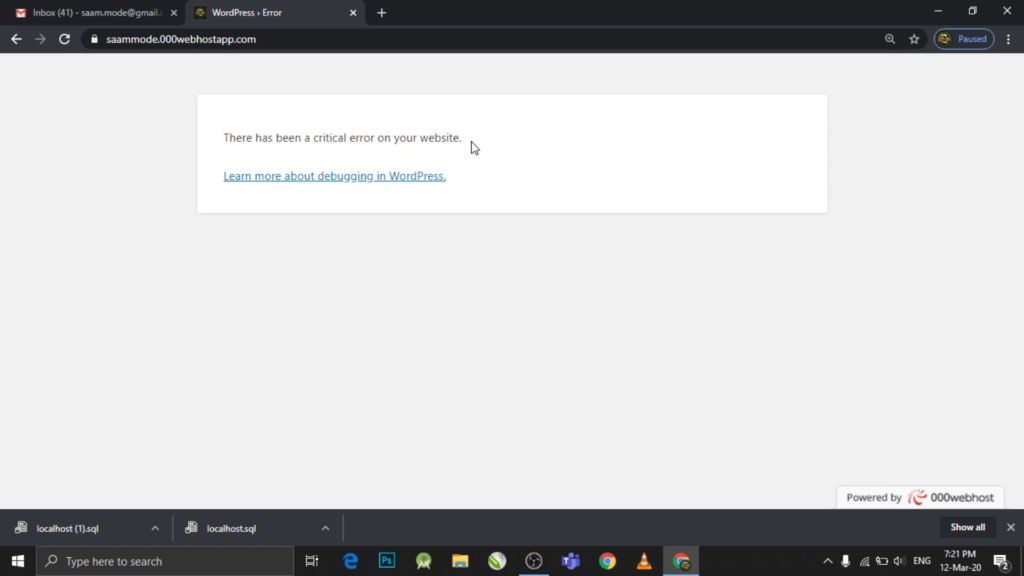
This is a common problem that most of the wordpress developer’s face. When you try to access your admin panel you will be seeing a message saying that “You website is having critical error – WordPress”. Well not just the admin page, sometimes when you try to visit any page or homepage of your website you might face this issue. Cleary something has happened! Lets find out
Your website is having Critical Error
Why it happened!
Usually this is happened due to a change in your files, specially your plugin. It might occur when you update a plugin or delete a required file. So always keep in mind about this! The good news about this error is that you can get your website back. You just need to undo the changes your have done. You might say I have not changed or done anything. But this happened! yes It will, The common case is that when you enable automatic updates. For example a plugin might have updated to the a version that is not compatible with the version of your WordPress.
STEPS: Solving your critical error
Navigate to login page for your dashboard using the url
Check your wordpress admin email inbox for the link to your RECOVERY_DASHBOARD. (Check spam also)
Open the mail and go to the link specified
Login to your dashboard
Navigate to plugin section
Check for the plugin with error. (It’s in red color)
Deactivate the plugin
Watch the vedio tutorial
Well, I did not receive any mail, but it says “You website is having critical error “
First thing is not to panic. If this happens another way to solve “Your website is having critical error” is by using ftp. What you need to do is login to your website FTP and manually delete the one that is having error. If you are not sure which one is causing the error, ensure to check the log to see what are the recent updates and things happened on your website. And also, before manually deleting anything ensure to make a backup of whatever you are deleting.
How to avoid from happening this from AGAIN?
Every website maintainer must have heard of backup tools. And its better not to use any backup tool, but an automated backup tool. I am using is https://wordpress.org/plugins/updraftplus/ . They have both paid and free version. You can backup into the cloud directly to Dropbox, Google Drive, Amazon S3 (or compatible), UpdraftVault, Rackspace Cloud, FTP, DreamObjects, Openstack Swift, and email. The paid version also backs up to Microsoft OneDrive, Microsoft Azure, Google Cloud Storage, Backblaze B2, SFTP, SCP, and WebDAV.
Every one want a better look for their pc. If its a folder that we created then we can change the icon of that folder. In the following steps i will show you that!
STEPS:
1.Right click on the folder you wish to change icon
2.Go to properties at the bottom
3. Again go to customize.
4. Now you can see how to change the icon buttom
5. Click on that and select the preffered icon
6. Press “OK” or “APPLY”
7. Now you have successfully changed the icon of the folder
Lets watch it in real time
Watch vedio tutorial
How do I change multiple multiple folder icon at one?
Yes it is possible to change multiple folder at once. The easiest way to achieve this is to use a software like https://foldermarker.com/en/ . These tools will change the many folders icon at once. If you are a developer, you can also code a program to change the icon of files.
Features of folder marker
Key features:
Change a folder icon with one click
Label folders by priority (high, normal, low).
Change a folder’s entire color (or shade of color – light or dark) any time you like! Your choice!
Integrated into your Windows Explorer! Right-click on any folder and folder maker will be there
Can change the Network folder icon.
With Folder Marker you also have two additional options for folder icon changes: “Make customized folder distributable” (portable) and “Apply selected icon to all subfolders”
Folder Marker’s menu can contain category submenus.
Add your favorite icons and label folders with them. It’s easy!
several folders at once
Assign an icon to a folder from: ICO, ICL, EXE, DLL, CPL or BMP file
Supports 32-bits icons
and
Folder Marker can change the icons of ALL folders in your system. This is the favorite feature of customization lovers. Get rid of monotony! Make your folders your own!
And what’s more – Folder Marker has a FREE edition with basic functions!
Another software I recommend for you to use is https://www.sordum.org/10124/folder-painter-v1-3/ . The folder painter software is similar to folder marker, So once you install it, It will be pretty straight forward.
Fonts can be a very important thing when it come to visual. In windows 10 you can easily view the fonts you have installed and uninstall unwanted fonts easily.
Cmd is a common tool every person who knows a computer should try! Cmd or command prompt is program which perform action based on the command we give. using cmd you can do a lot of things easily. Today I am going to show you steps on changing time & date using cmd.
Steps:
Open start menu and open cmd
Type date and press enter
write the new date and press enter
Again type time and press enter
follow the same steps to change date and time.
To change date & time you need the permission of the administrator. If you dont have the administrator password change the date and time from the boot menu.